
Notion
Add expenses to Notion when you tap your Apple Wallet
Automatically prompts you to log your expenses in Notion after making a payment.
This setup takes Shortcuts a step further by automatically triggering it when you pay with Apple Wallet.
After a payment, you’ll be prompted to add the expense to Notion, with key details like the merchant name and amount already filled in.
This setup requires the SyncSpend app, and your Notion account must already be connected to it.
Create an automation
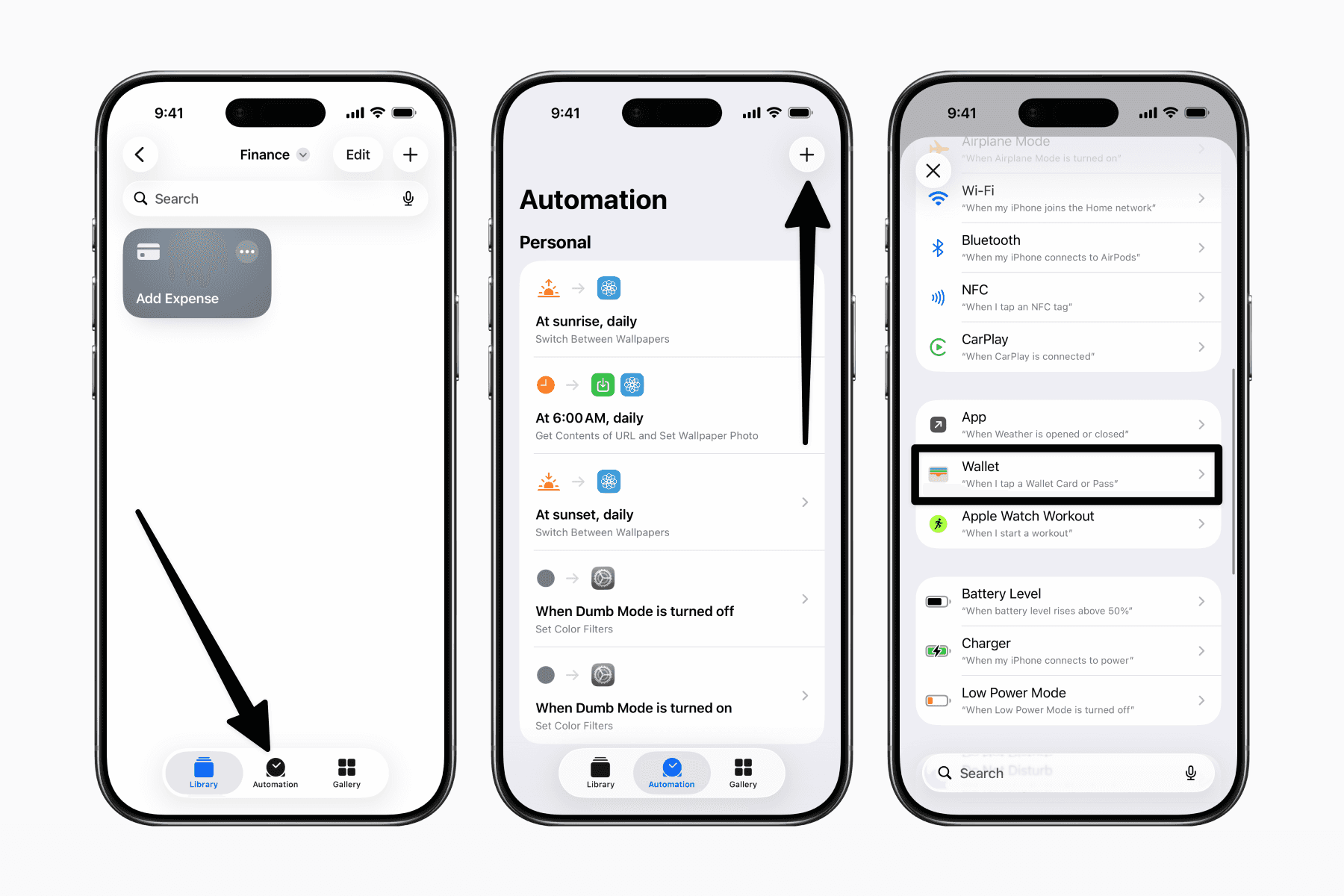
Open Shortcuts and go to the Automations tab.
Tap the plus icon in the top-right corner to create a new automation.
Then, scroll down and look for “Wallet” to select it as the trigger.
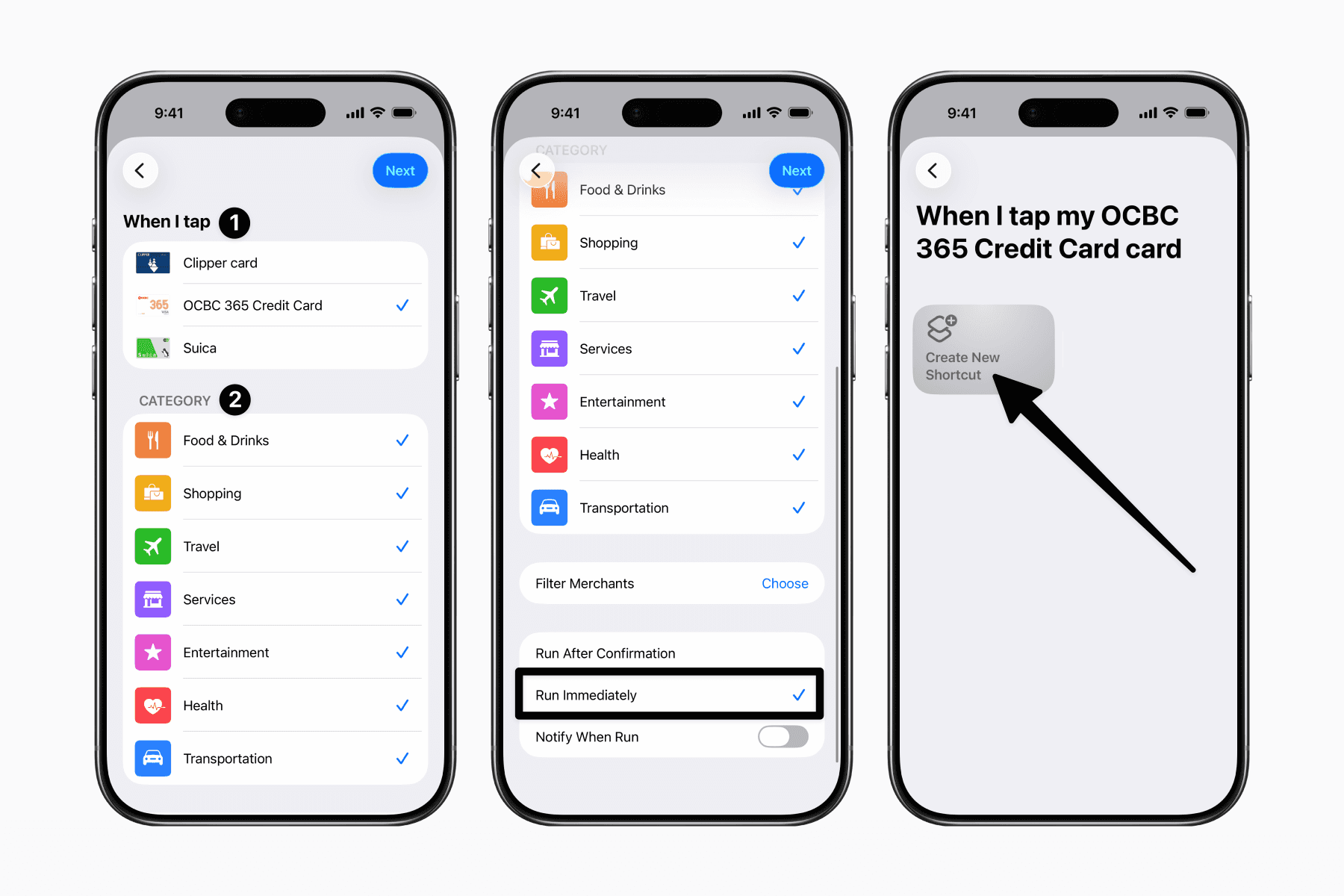
On the next page, you’ll be prompted to select or deselect the Cards and Categories that will trigger this automation.
Then select “Run Immediately” to skip the confirmation step whenever this automation is triggered.
On the next page, tap “Create New Shortcut.”
Set up the shortcut action
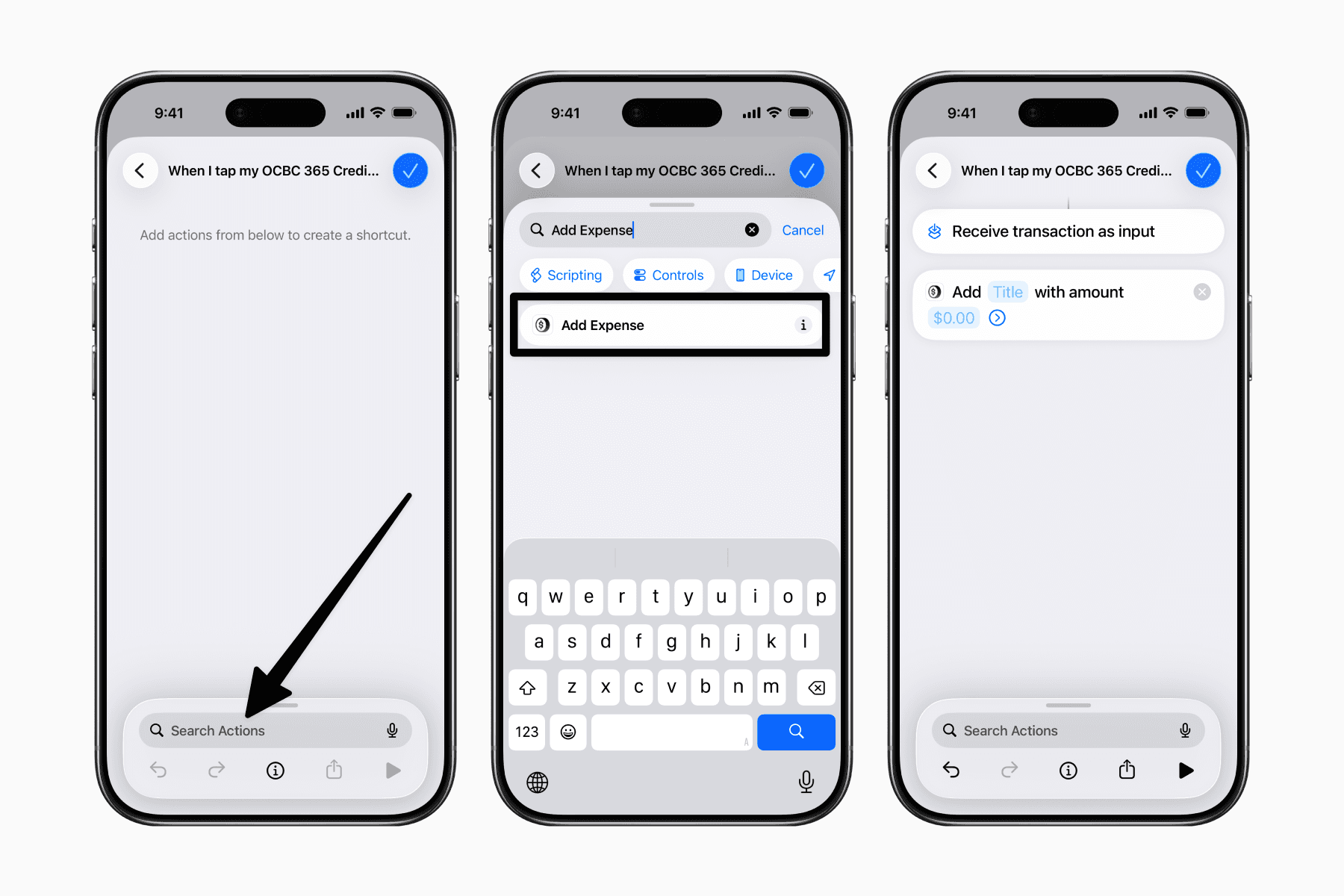
Search for "Add Expense" to add the action provided by SyncSpend.
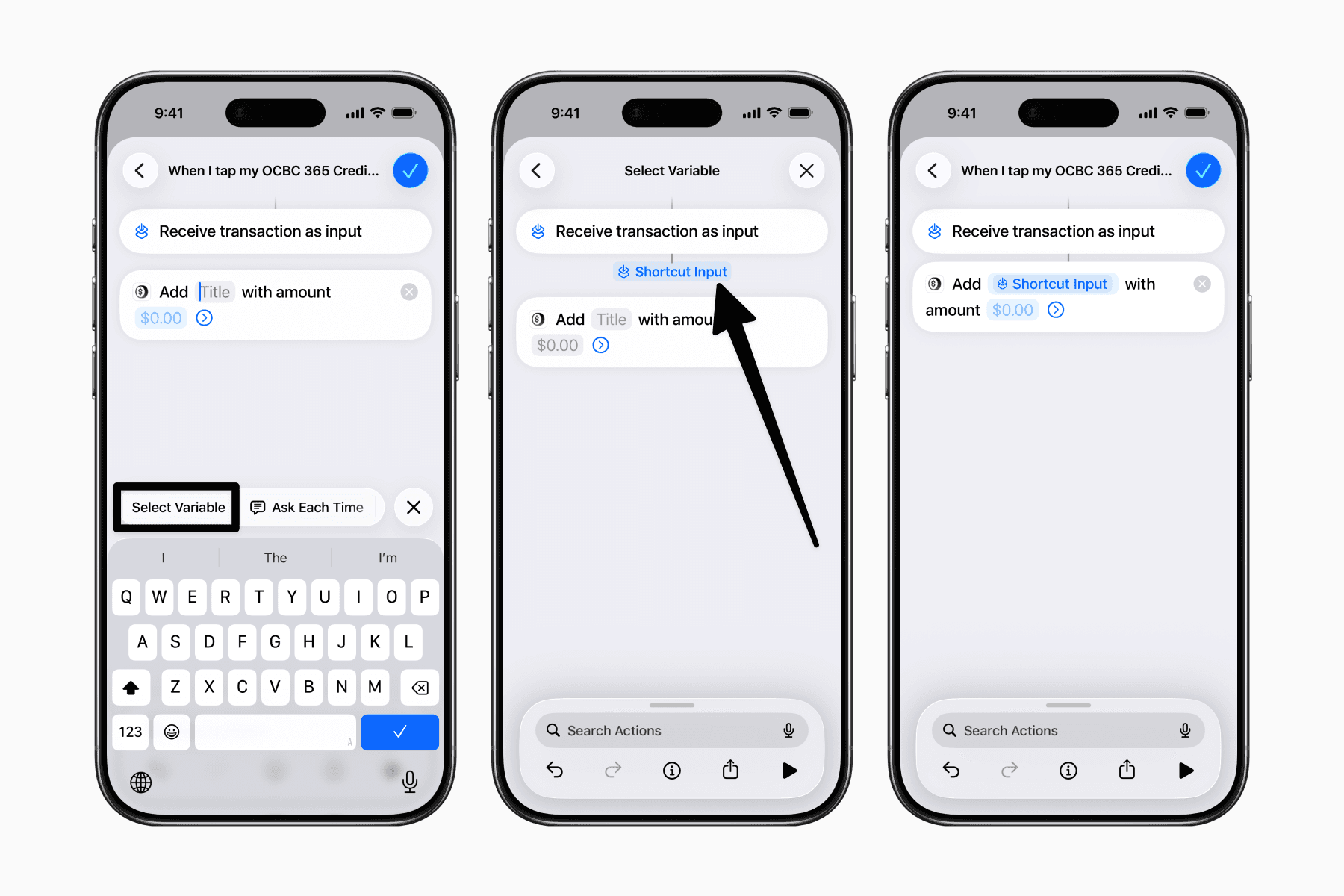
First, tap the Title field, then tap “Select Variable” and choose “Shortcut Input.”
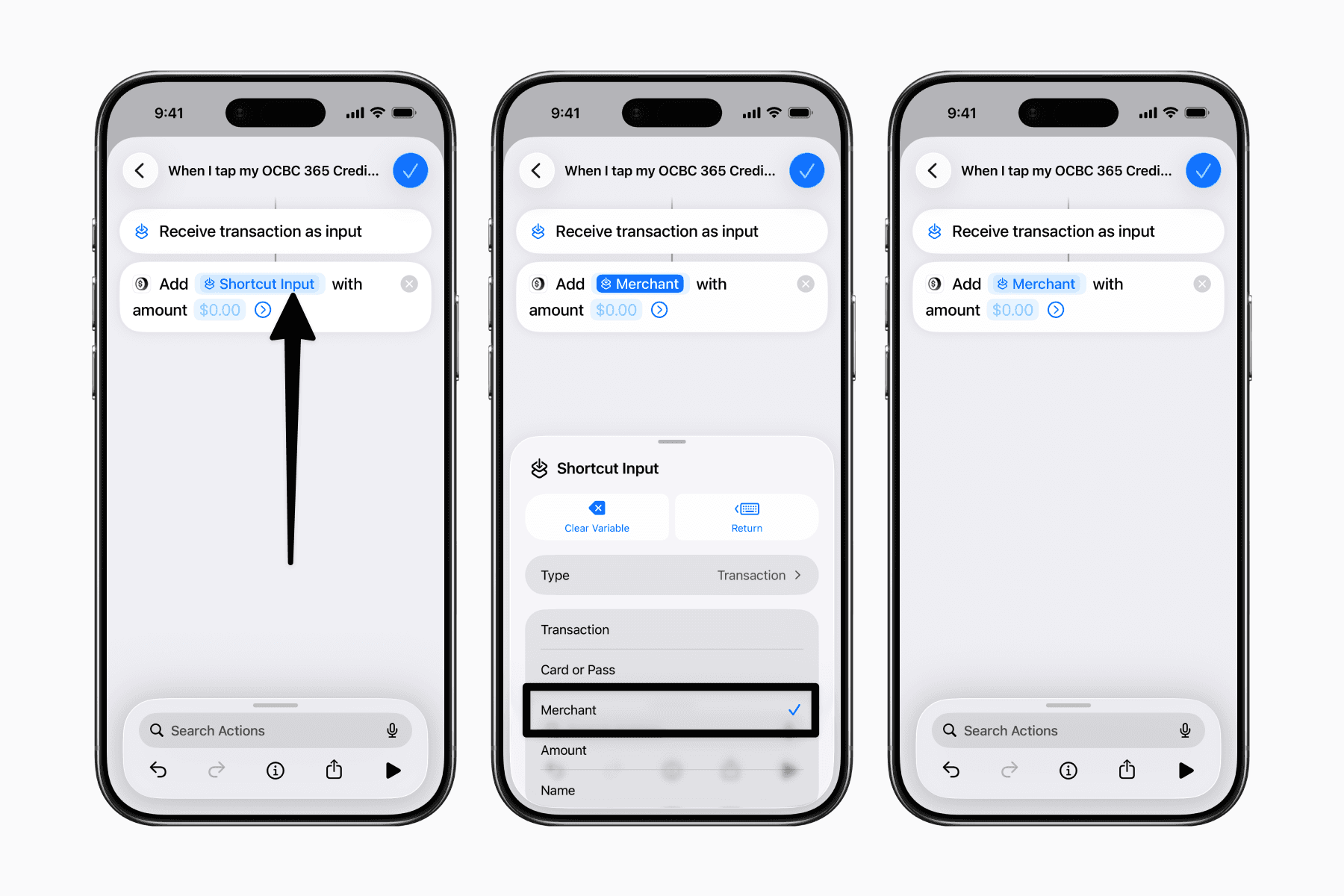
Then tap the Shortcut Input variable in the Title field and select the specific transaction detail to extract, which will be Merchant.
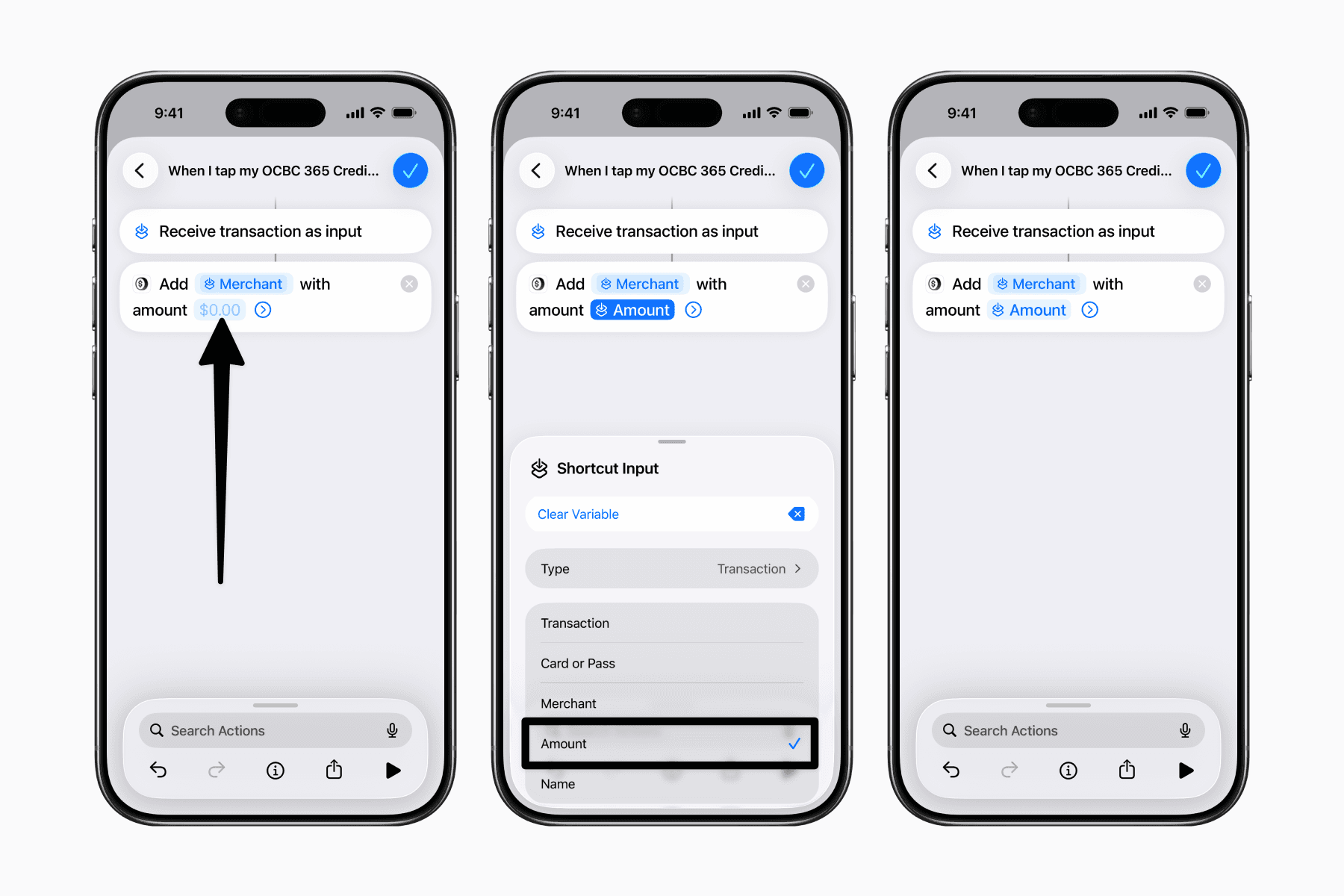
Next, for the Amount field, again tap “Select Variable”, choose “Shortcut Input,” and then tap the variable. This time, select Amount as the detail to extract from the transaction.
Prefill any additional details
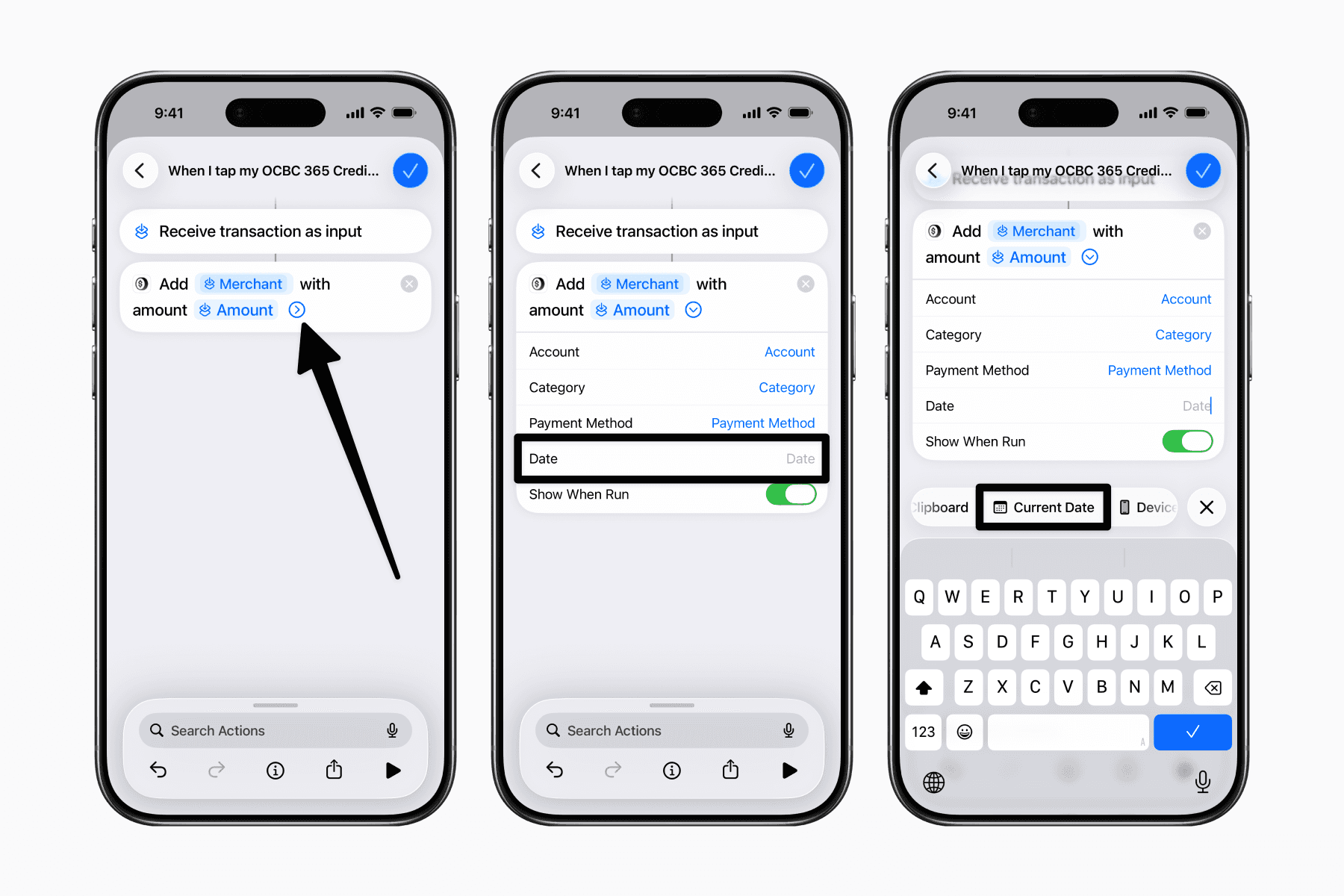
Since this shortcut runs when you make a payment, you can also prefill the date with today’s date.
Tap the dropdown arrow to reveal more expense details, then tap the empty Date field. Scroll through the variables above the keyboard and select the “Current Date” variable.
Lastly, if the trigger for this automation is just one card, you can also prefill the Payment Method that represents it.
Tap the Payment Method field and select an option. This option must already be added to your account for non-Notion users, or connected to your Notion property or database for Notion users.
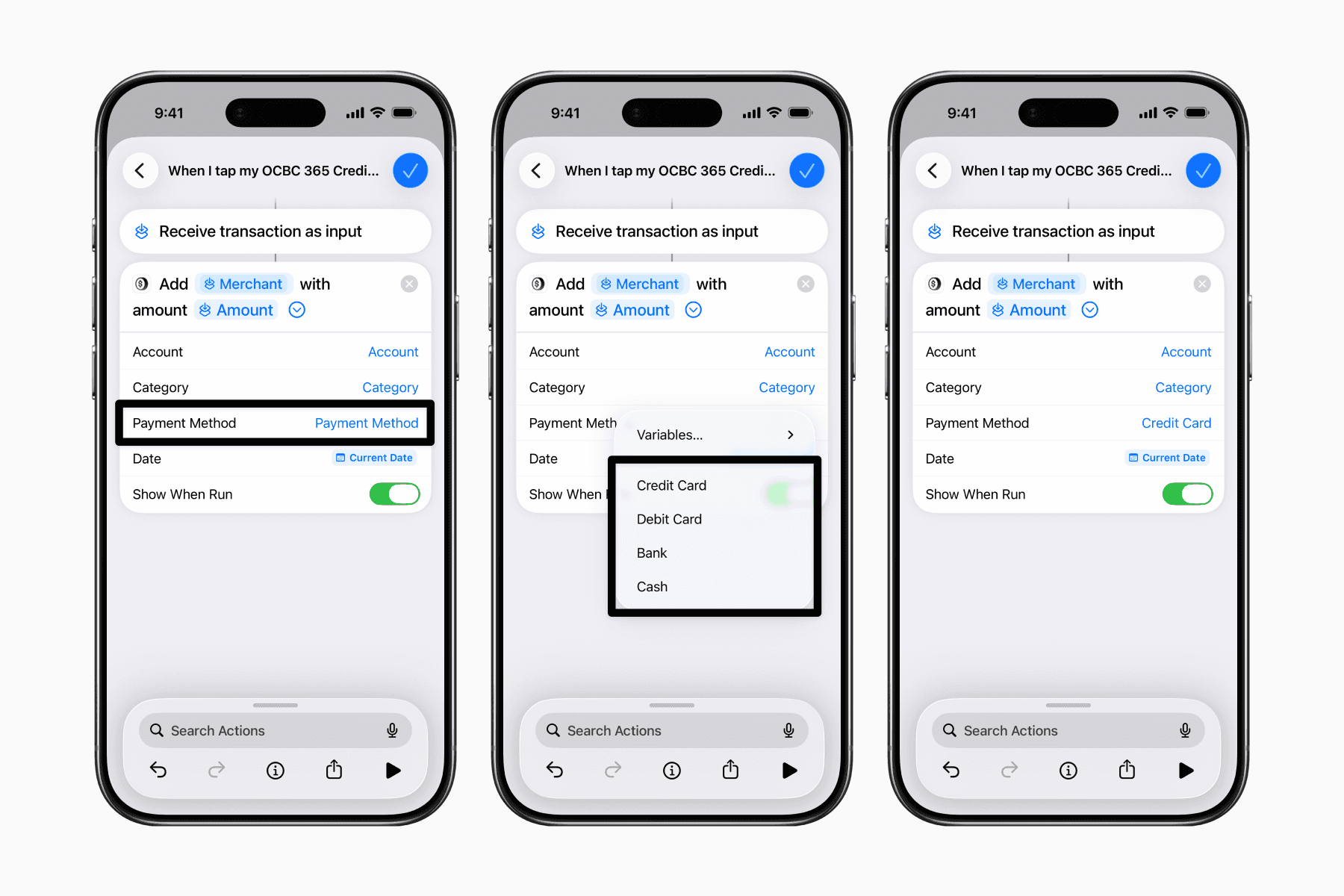
With that, your automation is ready. When it runs, you’ll simply be prompted to fill in any remaining details that were left empty, such as your Category.