
Notion
How to quickly add expenses to Notion
SyncSpend helps you log expenses to your Notion database quickly using Shortcuts.
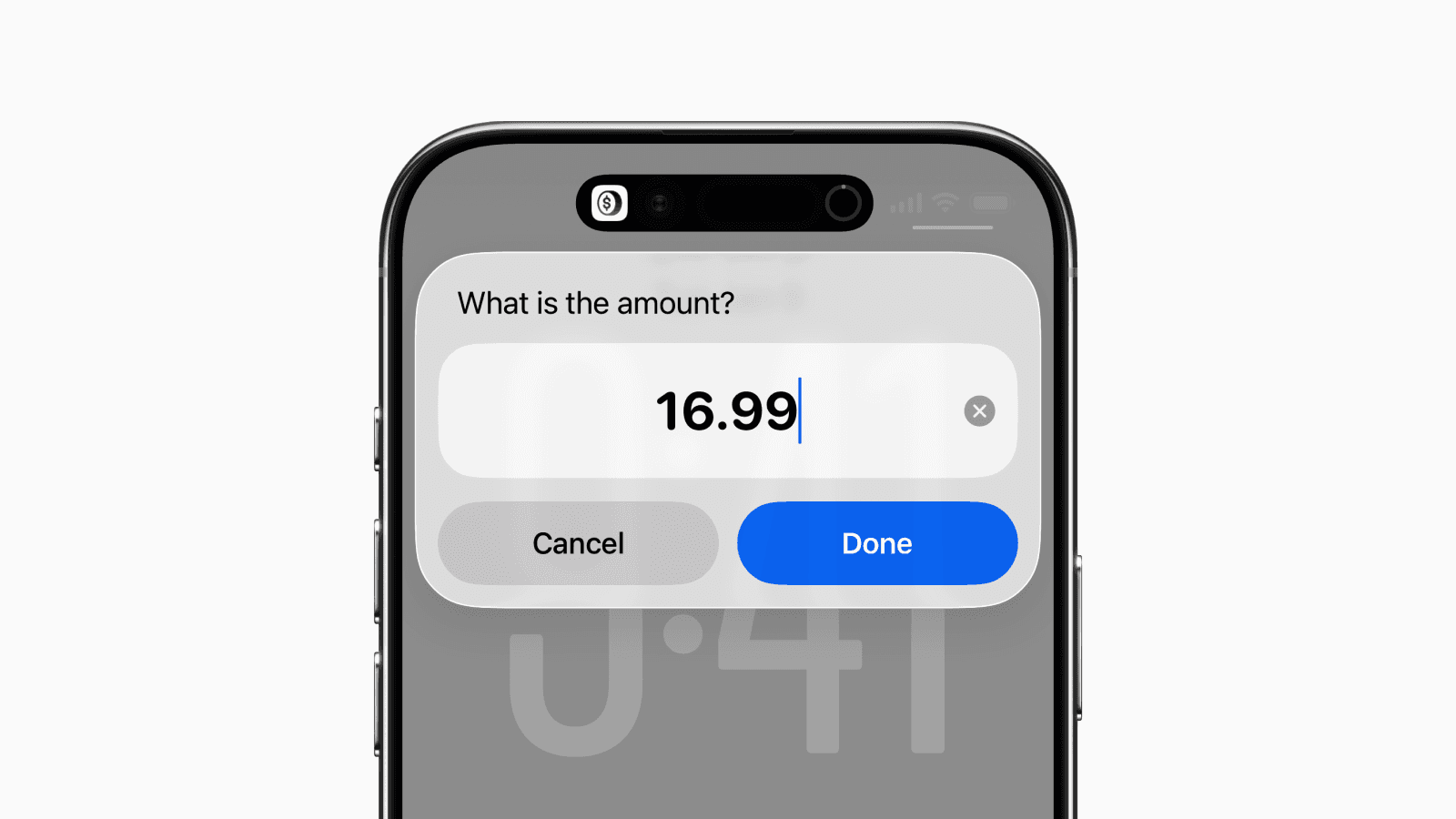
Logging expenses into Notion on mobile isn’t always the most convenient when you’re on the go.
In this guide, we’ll set up a shortcut that lets you quickly add expenses to your Notion database from places like your Lock Screen, Control Center, or Back Tap.
To do this, we’ll use SyncSpend, an iOS app that syncs with your Notion database and provides a Shortcut action for adding expenses instantly.
1. Set Up a Notion Account
First, download SyncSpend from the App Store and set up a Notion account.
Once you’ve successfully connected to your Notion account and database, the next step is to create a Shortcut.
2. Create a Shortcut
Open the Shortcuts app and tap the plus button in the top-right corner to create a new shortcut.
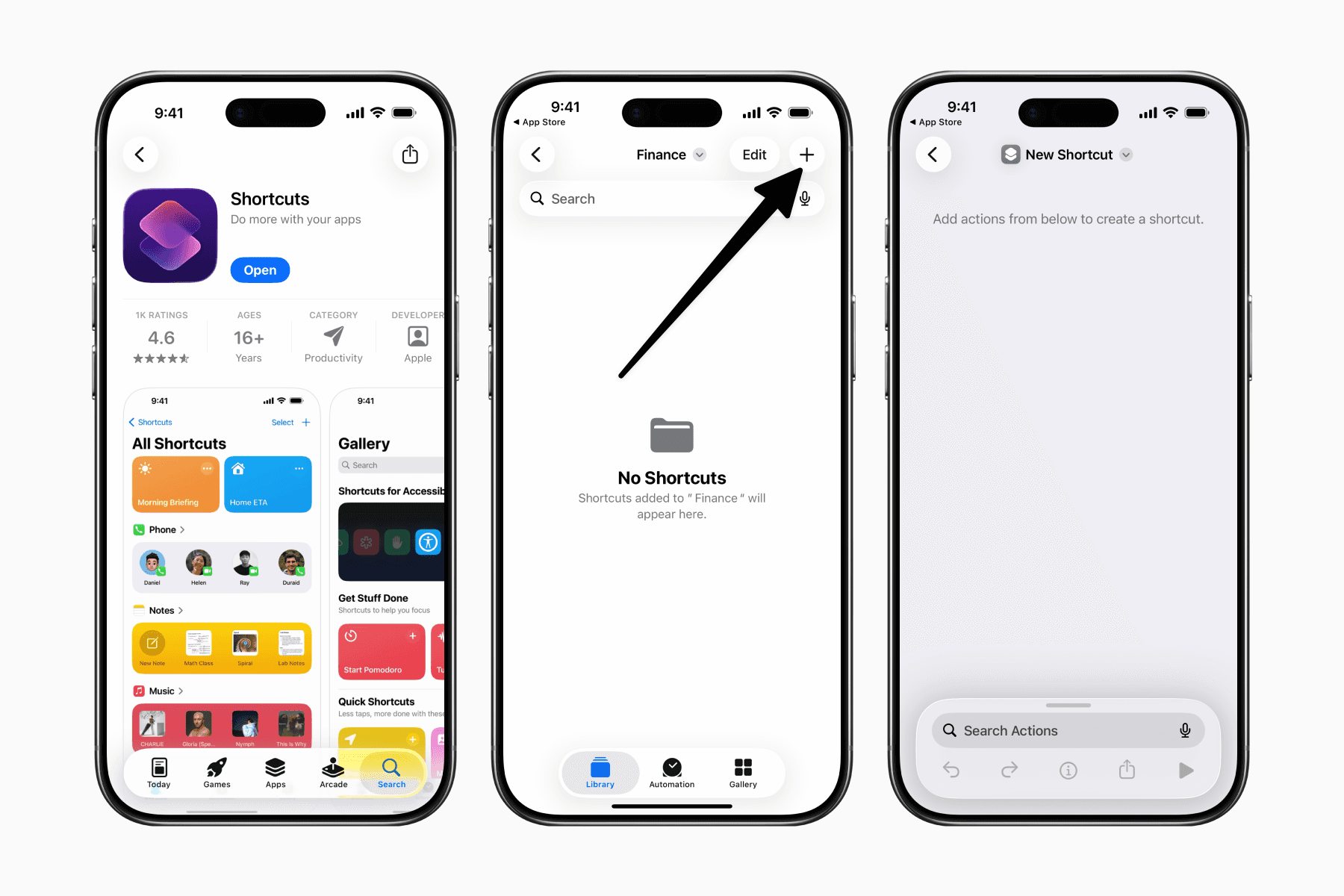
Then search for SyncSpend and add the provided action.
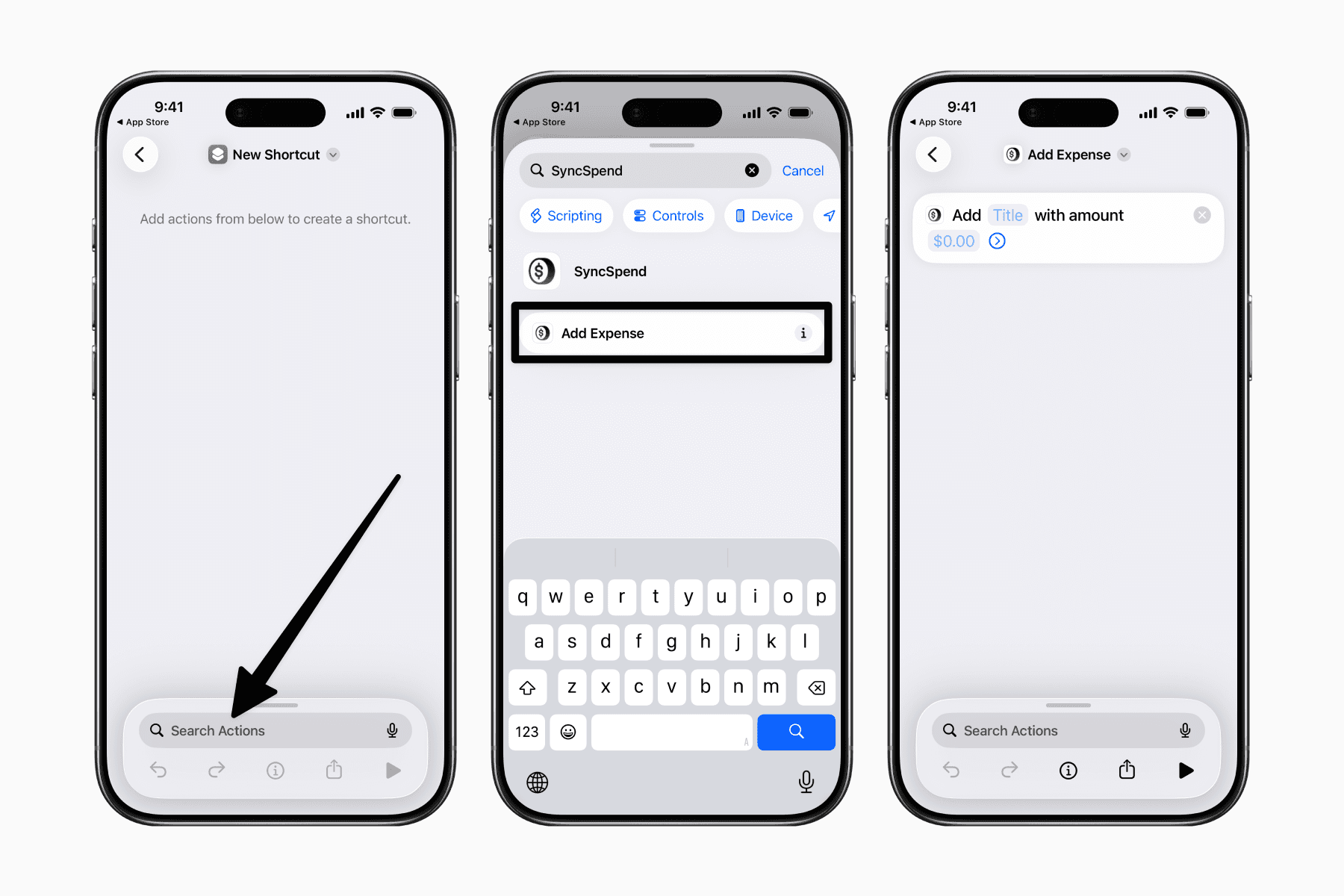
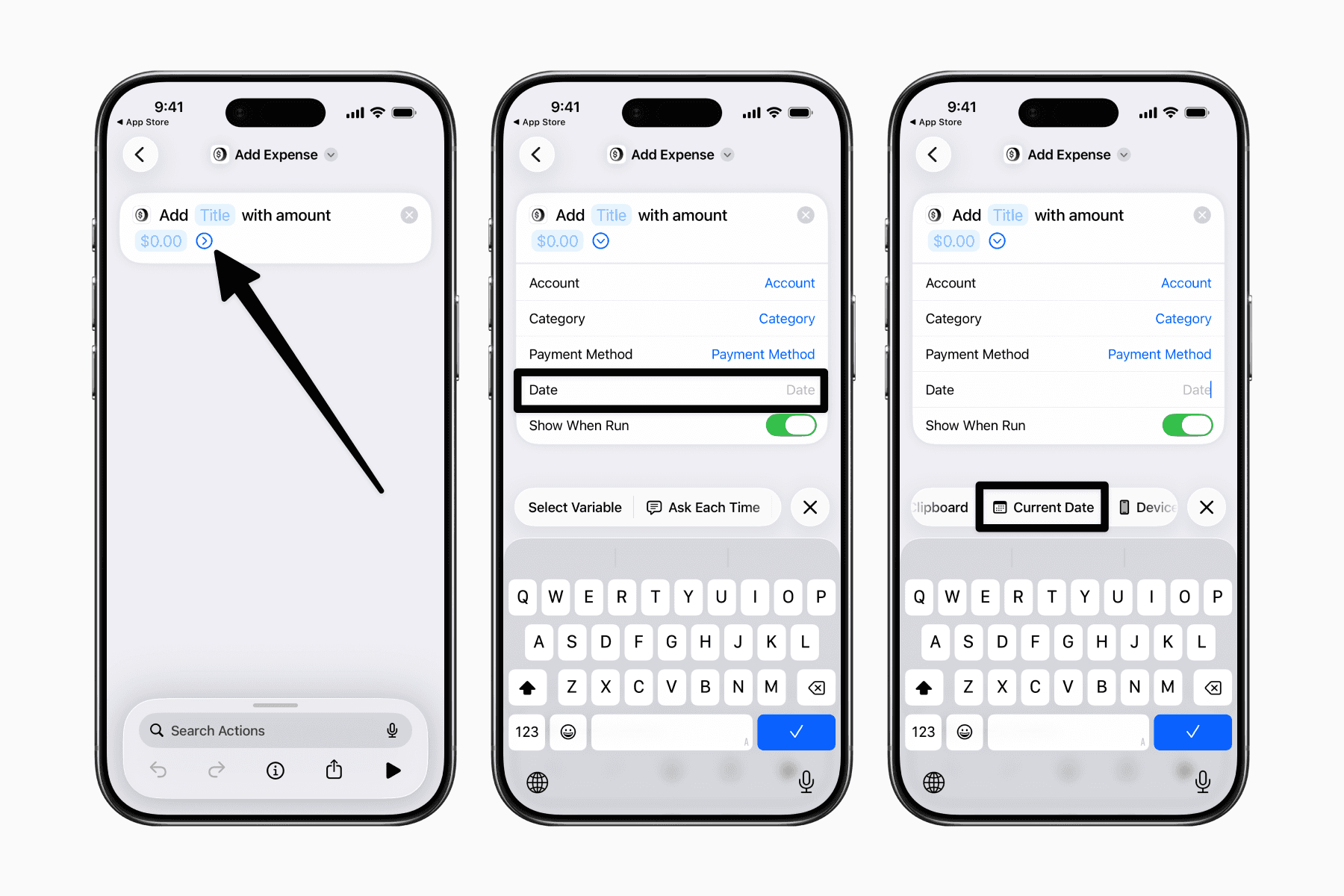
You can leave it as it is, though you can optionally prefill some of the expense details.
For example, if you always use the same payment method or want the date to always default to the current date.
3. Assign the Shortcut
The next step is deciding where to place the shortcut.
One option is to add it to Back Tap, where you can double- or triple-tap the back of your phone to trigger the shortcut.
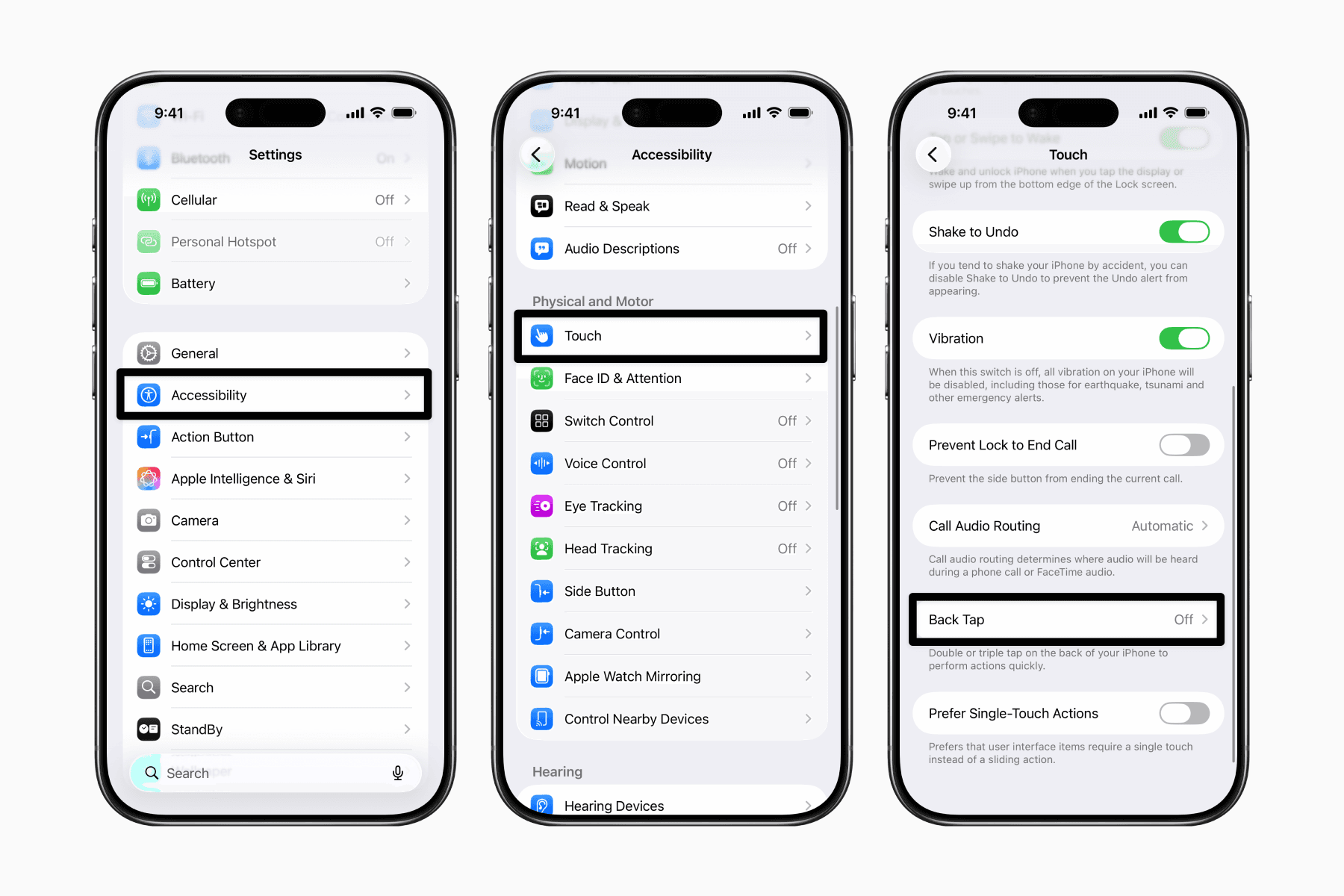
Open Settings, then go to Accessibility > Touch > Back Tap.
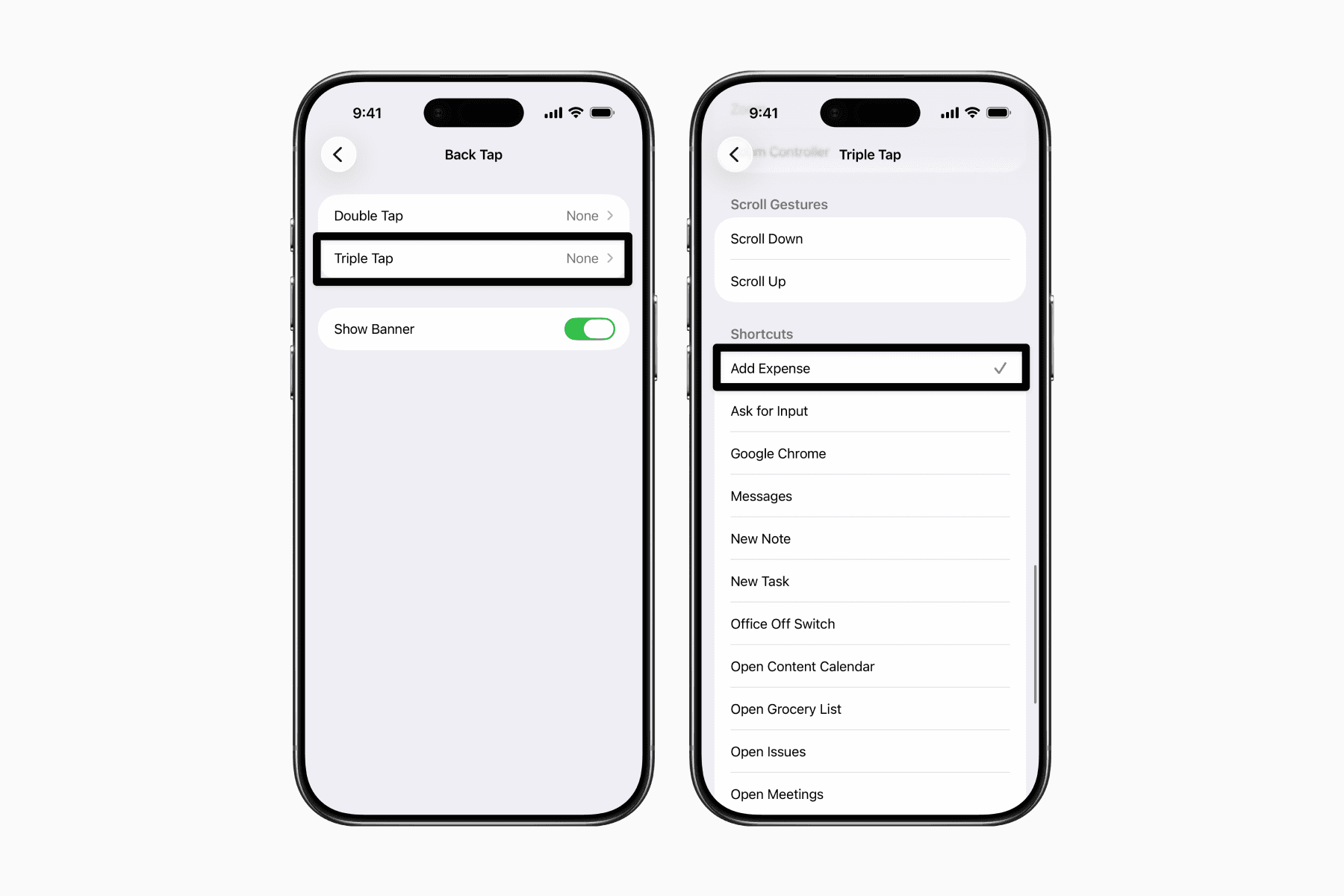
Choose Double Tap or Triple Tap, then scroll down to the Shortcuts section, find your shortcut name, and tap it to assign it.
Another option is to add it to Control Centre, which you can access anytime by swiping down from the top of the screen.
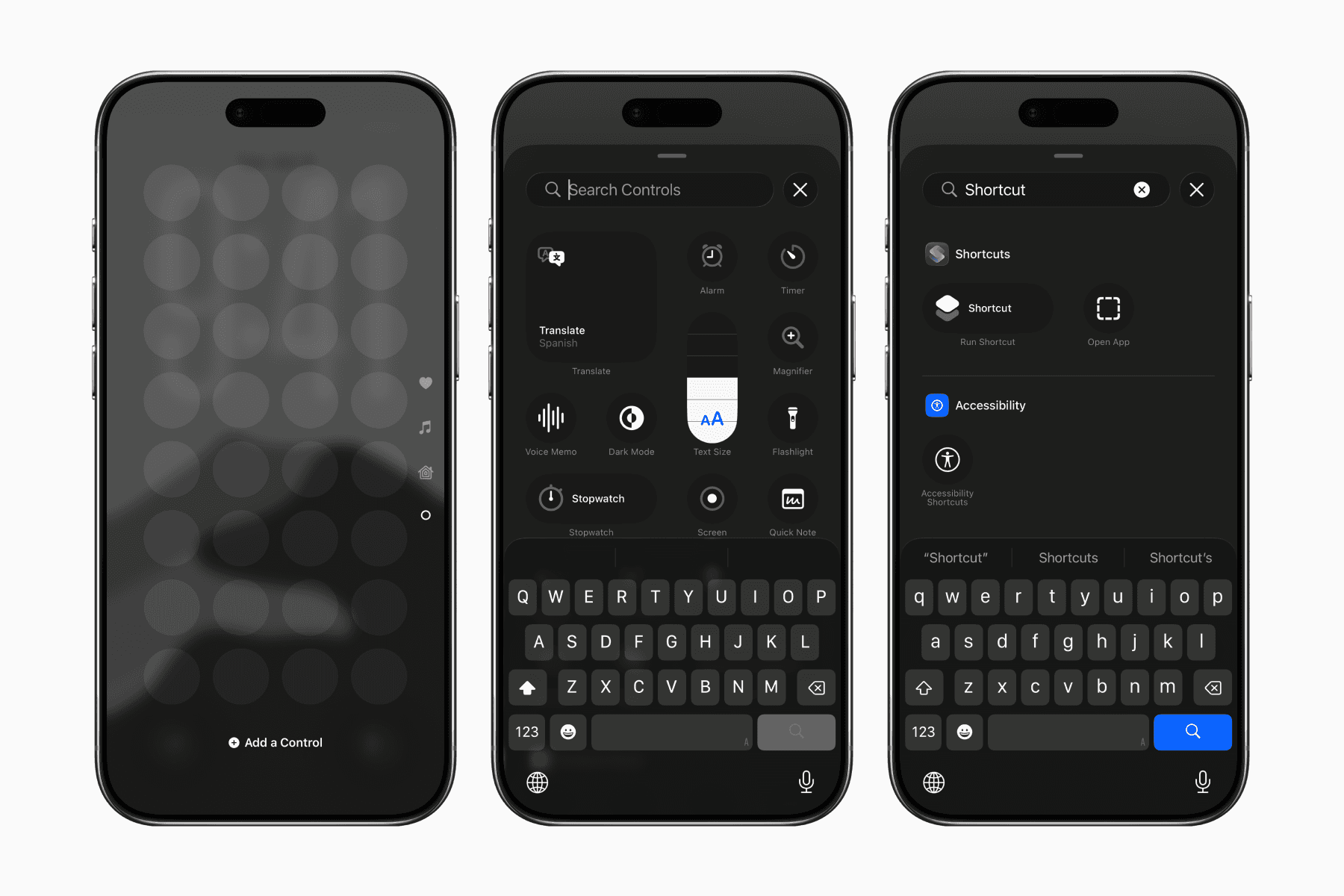
First, swipe down from the top-right corner of the screen to open Control Centre. Tap the plus icon in the top-left corner, then tap the Add a Control button that appears at the bottom.
Search for Shortcut, then add the control called Run Shortcut.
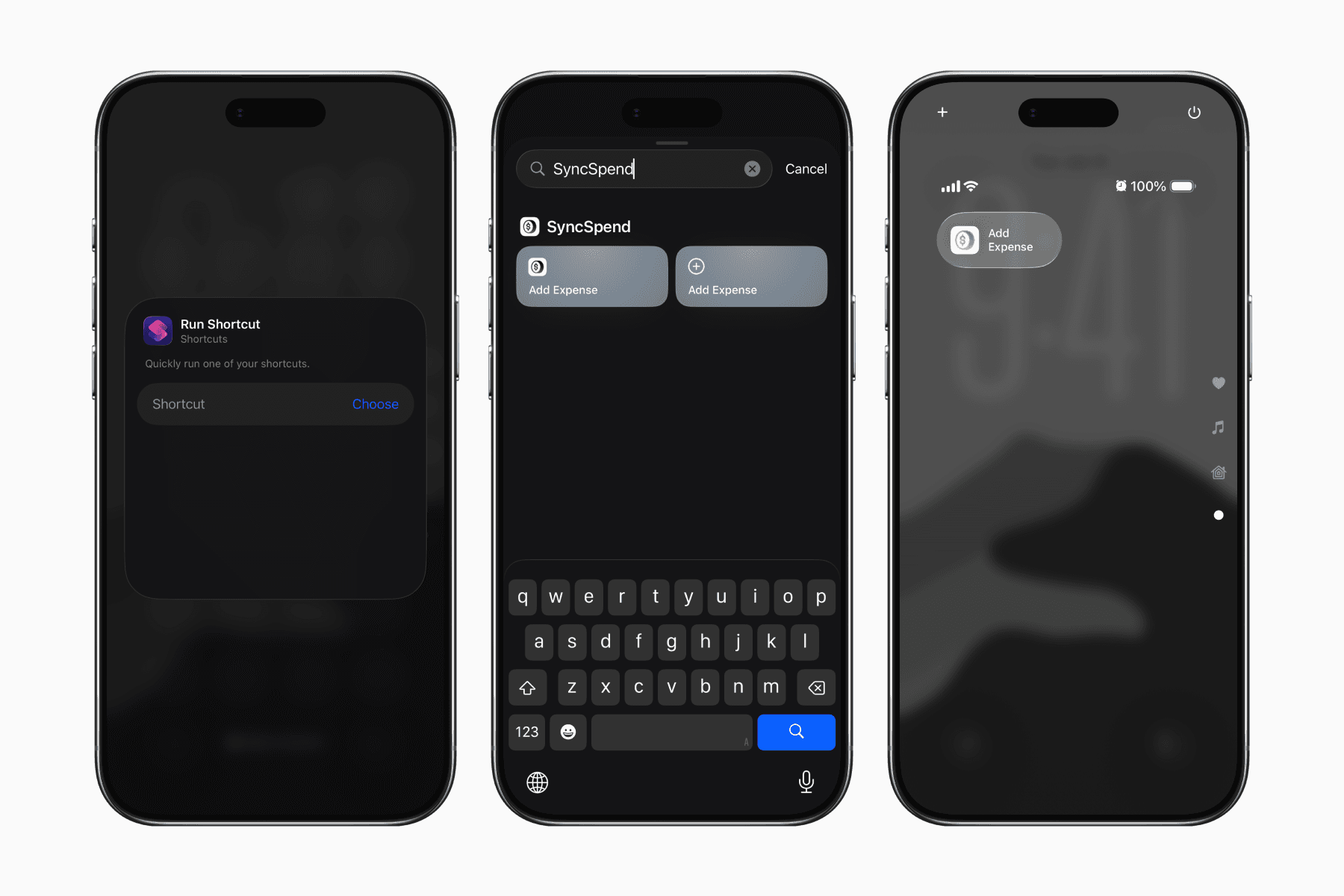
You’ll then be prompted to choose the shortcut you want to run, simply search for whatever you named your shortcut or SyncSpend.
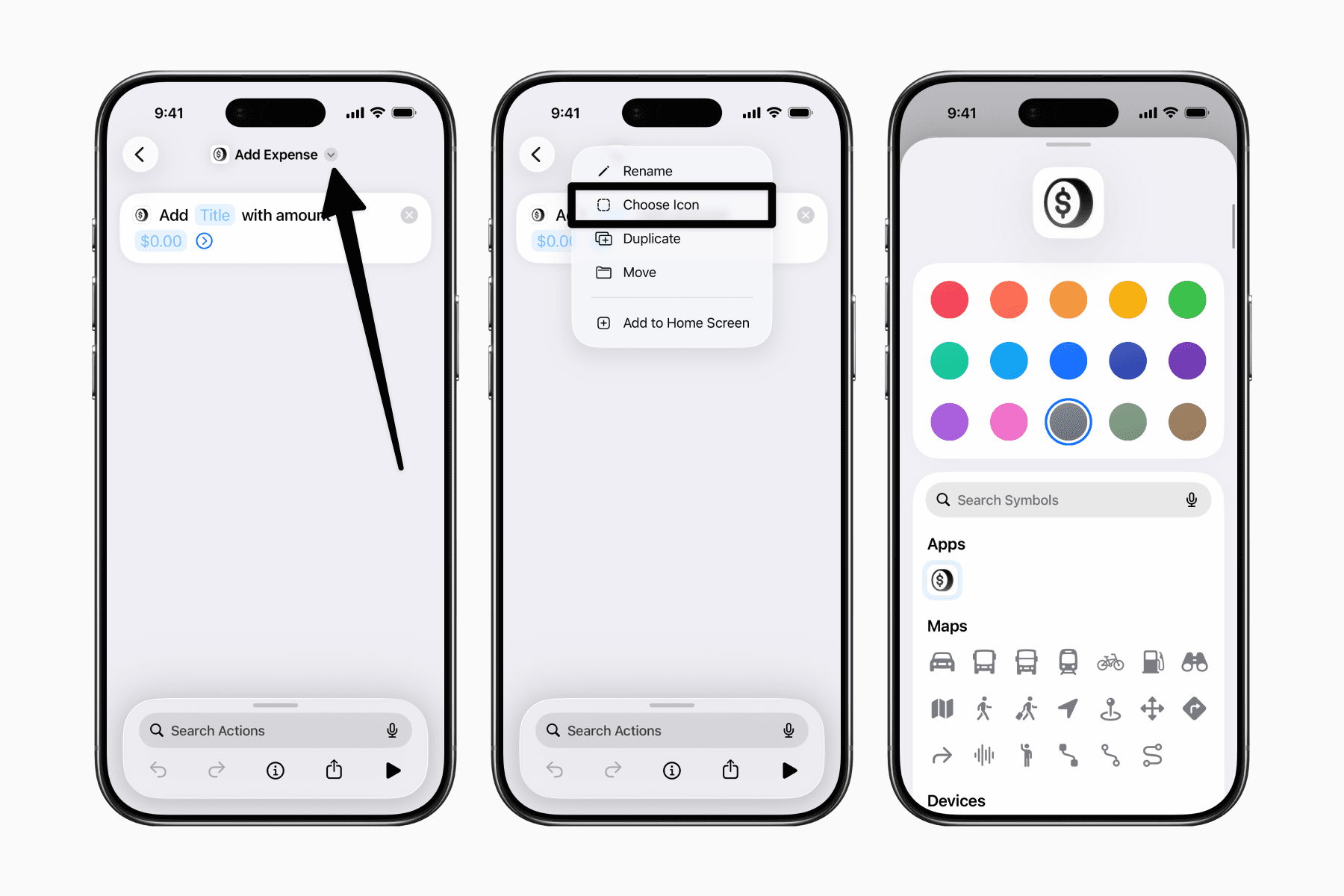
For those who like a little customization, go back to the Shortcuts app and open the shortcut you created.
Tap the dropdown arrow beside the shortcut name and select Choose Icon.
Here you can choose a custom icon for the shortcut instead of the default app icon.
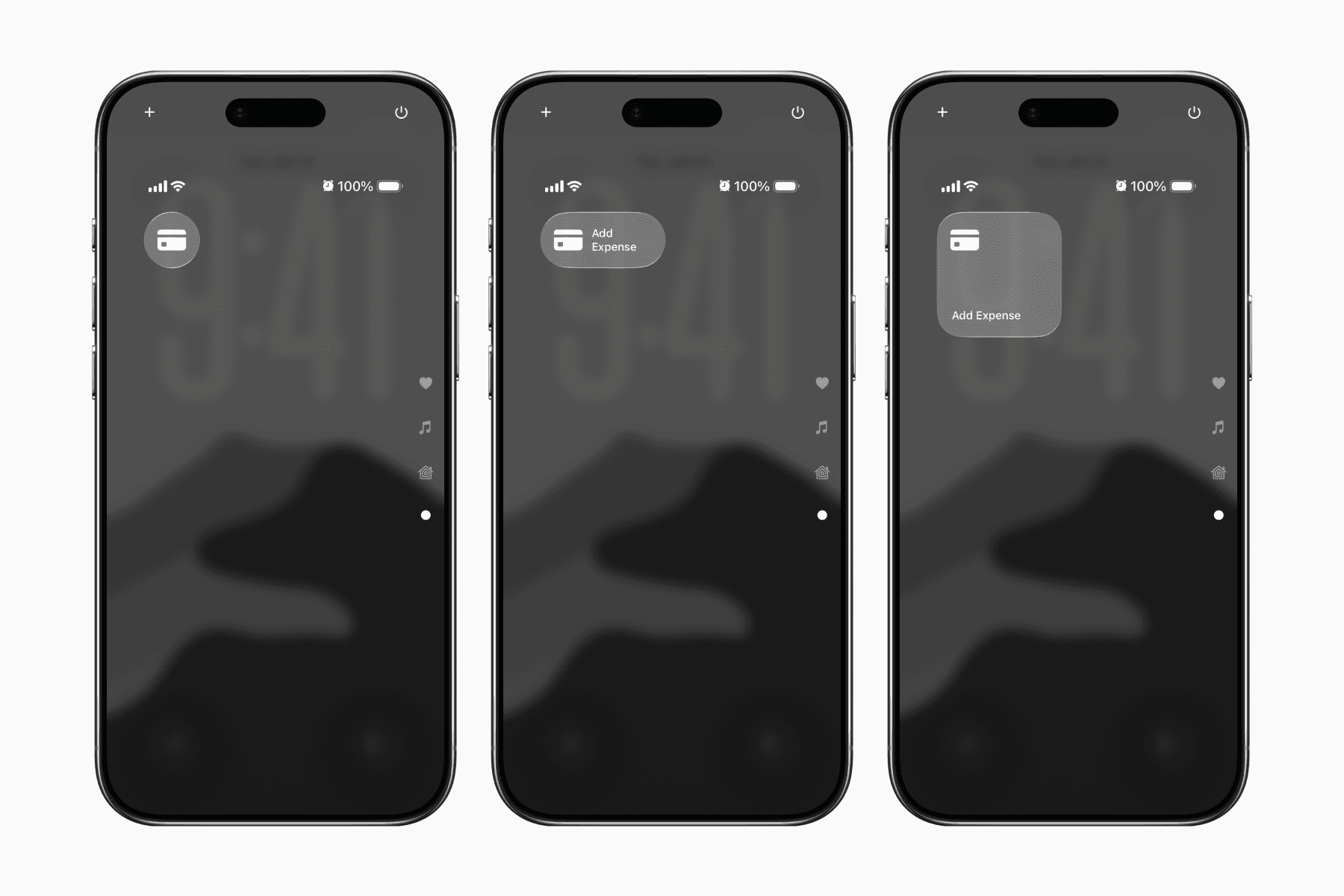
In Control Centre, you can also freely resize the control to take up one slot, two slots, or four slots.
Closing Remarks
We recommend using Back Tap or Control Centre, as they’re less likely to already be assigned to other actions.
That said, you can also explore other ways to trigger shortcuts, such as Lock Screen Controls or the Action Button on newer iPhones.